Error : 0x80660008 (message missing)

Debbie-Whitmer wrote on 3/30/2026, 6:26 PM

I have no idea what is suddenly going on with Vegas Pro 22! I went to RENDER something very simple and Vegas Pro 22 will NOT render anything for me. I rebooted my Windows 11 Pro PC and Vegas Pro 22 still would NOT work. So I shut down my PC and it still will NOT render anything. I am up to date with Windows 11 Pro (you can see my specs on-line). It keeps giving me the following error::

Error 0x80660008 (message missing)

What should I do??? I have to have Vegas Pro 22 working by this coming Thursday for a radio broadcast I'm involved with as their videographer. PLEASE HELP!

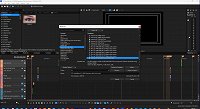
Here is a snapshot of my Render Configuration that I always use:

Last changed by Debbie-Whitmer

My name is Debbie Whitmer.  Here are my computer specs:
Processor:  AMD Ryzen 9 3900X 12-Core Processor – 3.80 GHz
Installed RAM:  64.0 GB
System Type:  64-bit Operating System, x64-based processor
Pen and touch:  No pen or touch input is available
Video Card:  NVIDIA GeForce RTX 3070 version 572.83 (Studio Driver)
Operating System:  Windows 11 Pro Version 25H2
OS Build 26200.8039 
Experience:  Windows Feature Experience Pack 1000.26100.300.0

Comments

Dexcon wrote on 3/30/2026, 6:52 PM

From CoPilot re Error 0x80660008:

Error 0x80660008 typically occurs in video rendering applications like Vegas Pro, often due to issues with NVIDIA drivers or software updates.

Common Causes

  1. NVIDIA Driver Issues: The error is frequently linked to specific versions of NVIDIA drivers, particularly the 591.44 version released on December 4, 2025. Users have reported that this driver version causes problems with NVENC (NVIDIA Encoder) in Vegas Pro, preventing successful video rendering. 
  2. Software Compatibility: The error can also arise from compatibility issues between Vegas Pro and the installed graphics drivers. Users have noted that upgrading to newer versions of Vegas Pro (like V23) or rolling back to earlier driver versions (like 581.80) can resolve the issue. 
  3. Media File Creation Problems: In some cases, the error may occur when attempting to create media files or system restore points, often due to missing system files or permission issues. 

Troubleshooting Steps

  1. Rollback NVIDIA Drivers: If you are experiencing this error, consider rolling back to an earlier driver version that is known to work with Vegas Pro. You can do this through the NVIDIA control panel or by downloading the previous driver from the NVIDIA website. 
  2. Update Vegas Pro: If you are using an older version of Vegas Pro, updating to the latest version may resolve compatibility issues with the current drivers. 
  3. Check for System Updates: Ensure that your operating system is up to date, as updates can sometimes resolve underlying issues that contribute to errors like 0x80660008. 
  4. Use Alternative Encoding Tools: If the problem persists, consider using alternative encoding tools like Voukoder or HOS, which may bypass the issues with NVENC in Vegas Pro. 


By following these steps, you should be able to troubleshoot and potentially resolve the error 0x80660008 in your video rendering workflow. If the issue continues, consider seeking further assistance from community forums or support channels related to Vegas Pro and NVIDIA.

________________________________________

If you are using NVIDIA driver 591.xx and trying to render using NVENC, there are NVENC render issues that affect Vegas Pro 22 and earlier (and other apps as well) - this has been covered extensively on the forum since December last year. The best advice in this circumstance is to roll the NVIDIA driver back to 581.xx.

Cameras: Sony FDR-AX100E; GoPro Hero 11 Black Creator Edition; Samsung S23 Ultra smart phone

Installed: Vegas Pro 13, 15, 16, 17, 18, 19, 20, 21, 22 & 23, HitFilm Pro 2021.3, DaVinci Resolve Studio 20.3, BCC 2026, Mocha Pro 2026, NBFX TotalFX 7, Neat NR 6, DVD Architect 6.0, MAGIX Travel Maps, Sound Forge Pro 16, SpectraLayers Pro 12, iZotope RX11 Advanced and many other iZ plugins, Vegasaur 4.0

Windows 11 25H2

Dell Alienware Aurora 11:

10th Gen Intel i9 10900KF - 10 cores (20 threads) - 3.7 to 5.3 GHz

NVIDIA GeForce RTX 2080 SUPER 8GB GDDR6 - liquid cooled

64GB RAM - Dual Channel HyperX FURY DDR4 XMP at 3200MHz

C drive: 2TB Samsung 990 PCIe 4.0 NVMe M.2 PCIe SSD

D: drive: 4TB Samsung 870 SATA SSD (used for media for editing current projects)

E: drive: 2TB Samsung 870 SATA SSD

F: drive: 6TB WD 7200 rpm Black HDD 3.5"

Dell Ultrasharp 32" 4K Color Calibrated Monitor


LAPTOP:

Dell Inspiron 5310 EVO 13.3"

i5-11320H CPU

C Drive: 1TB Corsair Gen4 NVMe M.2 2230 SSD (upgraded from the original 500 GB SSD)

Monitor is 2560 x 1600 @ 60 Hz

andyrpsmith wrote on 3/30/2026, 7:18 PM

Yes the solution to this is 581 series driver. I use 581.94 which is stable and works great with V22.

You can get it from here: https://www.guru3d.com/download/geforce-58194-hotfix-driver-download/

Last changed by andyrpsmith on 3/30/2026, 7:21 PM, changed a total of 1 times.

(Intel 3rd gen i5@4.1GHz, 32GB RAM, SSD, 1080Ti GPU, Windows 10) Not now used with Vegas.

13th gen i913900K - water cooled, 96GB RAM, 4TB M2 drive, 4TB games SSD, 2TB video SSD, GPU RTX 4080 Super, Windows 11 pro

Debbie-Whitmer wrote on 3/30/2026, 8:06 PM

From CoPilot re Error 0x80660008:

Error 0x80660008 typically occurs in video rendering applications like Vegas Pro, often due to issues with NVIDIA drivers or software updates.

Common Causes

  1. NVIDIA Driver Issues: The error is frequently linked to specific versions of NVIDIA drivers, particularly the 591.44 version released on December 4, 2025. Users have reported that this driver version causes problems with NVENC (NVIDIA Encoder) in Vegas Pro, preventing successful video rendering. 
  2. Software Compatibility: The error can also arise from compatibility issues between Vegas Pro and the installed graphics drivers. Users have noted that upgrading to newer versions of Vegas Pro (like V23) or rolling back to earlier driver versions (like 581.80) can resolve the issue. 
  3. Media File Creation Problems: In some cases, the error may occur when attempting to create media files or system restore points, often due to missing system files or permission issues. 

Troubleshooting Steps

  1. Rollback NVIDIA Drivers: If you are experiencing this error, consider rolling back to an earlier driver version that is known to work with Vegas Pro. You can do this through the NVIDIA control panel or by downloading the previous driver from the NVIDIA website. 
  2. Update Vegas Pro: If you are using an older version of Vegas Pro, updating to the latest version may resolve compatibility issues with the current drivers. 
  3. Check for System Updates: Ensure that your operating system is up to date, as updates can sometimes resolve underlying issues that contribute to errors like 0x80660008. 
  4. Use Alternative Encoding Tools: If the problem persists, consider using alternative encoding tools like Voukoder or HOS, which may bypass the issues with NVENC in Vegas Pro. 


By following these steps, you should be able to troubleshoot and potentially resolve the error 0x80660008 in your video rendering workflow. If the issue continues, consider seeking further assistance from community forums or support channels related to Vegas Pro and NVIDIA.

________________________________________

If you are using NVIDIA driver 591.xx and trying to render using NVENC, there are NVENC render issues that affect Vegas Pro 22 and earlier (and other apps as well) - this has been covered extensively on the forum since December last year. The best advice in this circumstance is to roll the NVIDIA driver back to 581.xx.
 

@Dexcon - THANK YOU SO MUCH for your reply!! It worked!! What a relief!!! 🙂

My name is Debbie Whitmer.  Here are my computer specs:
Processor:  AMD Ryzen 9 3900X 12-Core Processor – 3.80 GHz
Installed RAM:  64.0 GB
System Type:  64-bit Operating System, x64-based processor
Pen and touch:  No pen or touch input is available
Video Card:  NVIDIA GeForce RTX 3070 version 572.83 (Studio Driver)
Operating System:  Windows 11 Pro Version 25H2
OS Build 26200.8039 
Experience:  Windows Feature Experience Pack 1000.26100.300.0

Debbie-Whitmer wrote on 3/30/2026, 8:08 PM

Yes the solution to this is 581 series driver. I use 581.94 which is stable and works great with V22.

You can get it from here: https://www.guru3d.com/download/geforce-58194-hotfix-driver-download/


@andyrpsmith - Thank you so much for your reply and for your kindness!! I so appreciate you giving me the download link that you did. It worked! I'm so happy now and relieved!! Thanks again!! 👍

My name is Debbie Whitmer.  Here are my computer specs:
Processor:  AMD Ryzen 9 3900X 12-Core Processor – 3.80 GHz
Installed RAM:  64.0 GB
System Type:  64-bit Operating System, x64-based processor
Pen and touch:  No pen or touch input is available
Video Card:  NVIDIA GeForce RTX 3070 version 572.83 (Studio Driver)
Operating System:  Windows 11 Pro Version 25H2
OS Build 26200.8039 
Experience:  Windows Feature Experience Pack 1000.26100.300.0