Project Properties for YouTube Widescreen?

Sonata wrote on 12/15/2008, 8:03 AM
When I am going to put a video on YouTube for my family to view, I start a project using the create project wizzard and select "Output: Internet High Quality." Then, when I am done I use the Make Movie wizzard and select YouTube and all is great, for 4:3 footage.

Now, I am using 16:9 footage and YouTube looks like it supports widescreen now. There isn't an output type "Internet Widescreen", obviously, so what project properties should I use? I don't want to use a 4:3 project with 16:9 footage because then YouTube will have bars on the top and sides, and where I am embedding the videos is a small space to begin with.

Should I use "DV Widescreen"? But wouldn't this make the file unreasonably large to later upload to YouTube?

Or should I still use "Internet High Quality" and just calculate my own height/width pixel count to fill a widescreen? If so, what ratios would fit 16:9 or do I have to figure that out from scratch?

All ideas or suggestions welcome.
Comments

Ivan Lietaert wrote on 12/15/2008, 8:21 AM
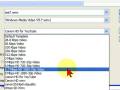
Click on file and select 'render as'. Go for Windows Media Video V9, template HD quality 720p. Make sure you tick of 'do not letterbox'. If the file is really huge, you can hit 'custom' and change the bitrate from 5 or 6 to 3.

Example Link: http://nl.youtube.com/watch?v=tsWZg2es1gA&fmt=22
Filmed in SD, edited in Vegas Movie Studio 8 and rendered to HD for better quality. To watch it in HD, you must add "&fmt=22" to the url manually.
Sonata wrote on 12/15/2008, 3:08 PM
When I try to do what you suggested (I had to go into Custom settings), I get a warning that MVS cannot output beyond 800x600, and it won't let me do anything in HD, even though the options are there!

If I render it as a regular DV Widescreen project, then I get a widescreen on YouTube, but I also get a LOT of black bars on the top and sides...

Any other thoughts? Thanks so far!

P.S. I am using Vegas Movie Studio 9 (regular $54 version).
Eugenia wrote on 12/15/2008, 3:15 PM
You need the Platinum edition to edit and export in HD. It seems that you bought the plain Movie Studio version, that doesn't support HD. Sorry, but you are up for an upgrade.
FredK wrote on 12/15/2008, 3:39 PM
Check out this tutorial on youtube. That is how I do it, and the results are perfect, widescreen and HD.


P.S. "watch in HD" is now an option on youtube, you don't have to use "&fmt=22" anymore, as long as the video was uploaded in HD, obviously.

Here is a video I made as a project for school, notice the "watch in HD" option directly under the youtube volume control.

HF100 edited in SVMS9:


Sonata wrote on 12/15/2008, 3:55 PM
Just to clarify, my DV camcorder does NOT do HD, just widescreen. I do not want to render in HD.

If I upload 4:3 footage to YouTube, I get bars on the sides, but the screen is filled top to bottom.

I am using 16:9 (not HD) footage now. If I upload that to YouTube, I get bars on all four sides.

Can I not fill the screen (at least fully in one direction) if it isn't uploaded in HD? The way it is now, my widescreen video "appears" to actually be smaller (and harder to see) than a 4:3 video that I have been doing to this point.
FredK wrote on 12/15/2008, 4:07 PM
What resolution are you rending to and uploading? For HD I use 1280x720. I think 640x360 will also give you widescreen.
Sonata wrote on 12/16/2008, 5:53 AM
I am editing in 720x480, pixels 0.9 for 4:3 footage, and 720x480, pixels 1.2121 for 16:9 footage.

Thank you for the input so far, everyone, but so far all of the replies have been regarding HD. I am not talking about HD. My camcorder is SD but shoots in 16:9 mode.

If I upload 4:3 footage to YouTube, it fills the screen top to bottom, which is lovely.

If I upload 16:9 footage to YouTube, I get bars on all four sides, which makes the video actually quite small, albeit the video is still in 16:9 ratio.

I just want to make more use of the YouTube screen when I upload 16:9 footage, either filling the entire YouTube screen, or at least fill the screen in one direction so there are bars on only two sides instead of four (letterboxing is fine). I am not talking about "full screen" mode here.

Since I can't do HD with VMS9 standard, nor do I have HD footage, the help and linked tutorials so far aren't working for me.

Any other suggestions? I haven't tried 640x360 yet; I will try that next when I have time to work on my project.

EDIT: I found this thread on another forum, so I am going to give some of these ideas a try, too (last post):

http://www.videoforums.co.uk/sony-vegas-media-studio/12506-encoding-youtube-vegas-7.html
Sonata wrote on 12/16/2008, 6:35 AM
Sorry for replying to myself, but I think I got this figured out--I was making it way more complicated than it is.

I found several 'blog posts and articles with the recommended resolution to upload the videos.

The reason I was getting black bars on all 4 sides of my video on YouTube was because I was using the WIZZARD within VMS9. So, it was uploading the video in 4:3 format, while keeping the 16:9 ratio of the video itself, this having bars on the sides (4:3) and top/bottom (16:9 within that 4:3).

So, I am going to try it again using 1.333 and/or 1.777 ratios, and NOT the wizzard, and see what happens!
MrEdit wrote on 12/16/2008, 10:28 PM
So WMV 720p does show in HD...

Weird. I uploaded a WMV in 1280x720, 20770kb/s bitrate..and for some reason it only uploaded as "high quality." Meanwhile an mp4 with the same settings was uploaded as HD.

I just opened that WMV file in GSpot and I think i used the Windows Media 9 Advanced Profile . Is that why it may not have uploaded as HD?
Eugenia wrote on 12/16/2008, 10:34 PM
>1280x720, 20770kb/s bitrate

That is overkill for 720p. You don't need more than 10 mbps max for 720p.
Sonata wrote on 12/17/2008, 6:33 AM
Well, last night I uploaded a video to YouTube in 16:9 (not HD) at 640x360. It filled YouTube's widescreen except for roughly 4 pixels on the top and bottom. (640x352 seemed to fill the space entirely.)

But the quality was horrifying! It was so bad. I compared it to other widescreen vidoes on YouTube that I thought were also in SD and they looked much better.

I got tired playing with it so just filling the space is goog enough for now, although I would like to get better quality if possible that is the same quality as when I use the "upload to YouTube" wizzard for my 4:3 footage.
MrEdit wrote on 12/17/2008, 8:45 AM
So I re-encoded the file I previously mentioned in Sony AVC mp4 and the quality on youtube is excellent.

If anyone wants to check it out:

But what I did notice is that the still-image preview of HD videos that appear on your channel look GOD AWFUL. For my videos that were just high quality the still-image preview is taken from the high quality version of the video. But with HD it looks like the preview is taken from the normal version of the video, which looks really, really bad. Kind of sucks.
Ivan Lietaert wrote on 12/17/2008, 8:50 AM
On stills, make sure you rightclick on them in the timeline and select 'reduce interlace flicker'.
richard-amirault wrote on 12/17/2008, 4:30 PM
I think he means the "stills" that YouTube picks to represent your video (the "thumbnail") .. one frame from near the front, one from the exact center, and one from near the end. If you don't like the one YouTube uses you can only choose from the other two.