Disable Resample : Please put me out of my misery . .

Grazie wrote on 5/15/2020, 2:52 AM

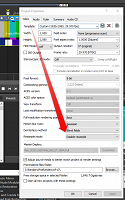
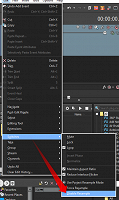
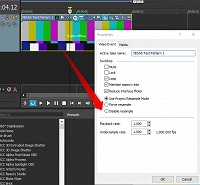
Yes, this is all about Deinterlacing. I know what this Control does, but there are 3 places where this Control appears:

Project Settings:
Edit > Switches:
Event Level:
Now, Vegsters, here are my questions:

1] Do I need ALL these switches to confirm I'm getting Disable Resampling?

2] What happens if one or two aren't enacted?

3] Why would I want to have these separated Controls? Under what circumstances would I want to do this separation?

4] What happens if one or two are not "with-the-program"?

5] What conflicts could occur?

TIA - Grazie


Comments

LongIslander wrote on 5/15/2020, 3:21 AM

😂 I always wondered this as well. I'm assuming/hoping the main project setting disables everything else.

michael-harrison wrote on 5/15/2020, 4:19 AM

fwiw, the manual states:

"Choose a setting from the drop-down list to determine how video frames will be resampled when the frame rate of a media file is lower than the project’s frame rate. This can occur either when the event has a velocity envelope or when the frame rate of the original media is different than the Frame rate setting on the Video tab of the Project Properties dialog.

With resampling, the intervening frames are interpolated from the source frames, much like a crossfade effect between the original frames. This may solve some interlacing problems and other jittery output problems.

Smart resample

Resampling occurs only when an event's calculated frame rate does not match the project frame rate and the project frame rate is 24 fps or greater.

The calculated frame rate takes into account any changes made to event speed with velocity envelope, playback rate, and undersample rate.

Force resample

Events are always resampled, regardless of frame rate or the output frame rate.

Disable resample

No resampling will occur

You can override the project Resample mode setting for each event using the event switches. For more information, see Applying switches to events"


so I would expect where events have something other than "Use Project Resample Mode" that setting would take precedence

Also, the "switch" and "properties" settings are the same setting. If you flip the setting in either place, it's reflected in the other.

System 1:

Windows 10
i9-10850K 10 Core
128.0G RAM
Nvidia RTX 3060 Studio driver [most likely latest]
Resolution        3840 x 2160 x 60 hertz
Video Memory 12G GDDR5


System 2:

Lenovo Yoga 720
Core i7-7700 2.8Ghz quad core, 8 logical
16G ram
Intel HD 630 gpu 1G vram
Nvidia GTX 1050 gpu 2G vram


Marco. wrote on 5/15/2020, 4:26 AM

Switching a resample mode from the editing menu or from the Event's right-click menu is same thing: You could switch that mode for a single or several selected Events. Switching the resample mode in the project properties is a global setting which affects all video Events of your project (if not single Events then will be modified via the right-click menu or editing menu).

But resampling is not about deinterlacing. These are different pairs of shoes. Deinterlacing is how two fields of the same frame are processed. Resampling is how adjacent frames are processed.

Oops, I oversaw the post of michael-harrison who already answered it.

Grazie wrote on 5/16/2020, 1:28 AM

But resampling is not about deinterlacing. These are different pairs of shoes.

@Marco. - Sure.

Deinterlacing is how two fields of the same frame are processed.

@Marco. - Please give an example to explain? Got an example where I'd use this?

Resampling is how adjacent frames are processed.

@Marco. - In the same Event or adjacent Events? Again, got an example where I'd use this?


RogerS wrote on 5/16/2020, 4:36 AM

Deinterlacing is about non-progressive footage where two frames each store every other line but the switching is done fast enough our eyes can't notice it. Do you still have interlaced footage? It's largely archaic and I don't think reduce interlaced flickering does anything on progressive footage.

Resampling is more if you've got a project in 30p but someone hands you 24p or 50p other footage how the extra (or missing) frames are handled. Do you want to throw away frames or have Vegas interpolate two frames and create a new average one? This is one where I'd do a test and look for ghosting, judder or other artifacts.

matthias-krutz wrote on 5/16/2020, 8:17 AM

Here is an example:

I must set dyn RAM to zero to use deinterlace method Smart Adaptive without crashes, but the result is fine.

Desktop: Ryzen R7 2700, RAM 32 GB, X470 Aorus Ultra Gaming, Radeon RX 5700 8GB, Win10 2004

Laptop: T420, W10, i5-2520M 4GB, SSD, HD Graphics 3000

VEGAS Pro 14-18, Movie Studio 12 Platinum, Vegasaur, HOS, HitfilmPro

monoparadox wrote on 5/16/2020, 8:43 AM

Since the discussion is started, what are the practical differences (if any) between motion blur and resampling? Especially for motion graphics. I'll swear resampling the event has made a difference in some situations and results in smoother motion.

-- tom

Grazie wrote on 5/16/2020, 8:47 AM

Guys, thanks for your patience. All this happened/came about because I was getting frame flicker and nonsense post render.


So:

Media Progressive

Project Progressive

Render Progressive

So, what gives? I went through ALL the places I could think of. The ONLY place I’d left unchanged was that Switch “Use Project Resample Mode” on the actual Event. I then set this to “Disable resample” and re-rendered, and it worked.

I really need a Grazie-Proof Flow Diagram with reasons of what to use and why.

BruceUSA wrote on 5/16/2020, 8:47 AM

If you are doing slow mode. You will want to disable resample on the Event as well. Otherwise you will get nasty results. For normal editing, your Project setting is good. I don't see the need for disable any other resample. At least this is what I see.

Last changed by BruceUSA on 5/16/2020, 8:51 AM, changed a total of 1 times.

CPU:  i9 Core Ultra 285K OCed @5.6Ghz  
MBO: MSI Z890 MEG ACE Gaming Wifi 7 10G Super Lan, thunderbolt 4
RAM: 48GB RGB DDR5 8200mhz
GPU: NVidia RTX 5080 16GB Triple fan OCed 3100mhz, Bandwidth 1152 GB/s     
NVMe: 2TB T705 Gen5 OS, 4TB Gen4 storage
MSI PSU 1250W. OS: Windows 11 Pro. Custom built hard tube watercooling


Marco. wrote on 5/16/2020, 9:29 AM

@Grazie

You need to find out what's the cause for your flickering first. Flickering can have a dozens of reasons.

3POINT wrote on 5/16/2020, 9:49 AM

My experience is that resampling only becomes active when event frame rate doesn't match the project/render framerate. Event framerate only differs from project framerate when importing media with different framerates or when using media with variable framerates. Within a project speeding up or slowing down an event activates also resampling. So when there are no differences in framerates it doesn't matter if smart resampling is enabled or not. So when Grazie sees a difference between enabled and disabled smart resampling there must be different framerates in his project.

Grazie wrote on 5/16/2020, 9:50 AM

Sure. I had applied a NewBlue FX and Rendered. ON I got flicker. OFF no flicker. ON and Disable Resampling ON no flicker. Does this make sense?

Marco. wrote on 5/16/2020, 10:05 AM

It does not yet make sense because we know nothing about your source footage's properties, which particular NewBlue FX you mean and which mode you switched on and off. Much more input.

Grazie wrote on 5/16/2020, 10:53 AM

Original Video:

Converted to make Media Conform to Project:

Final Render now using NewBlue Fx Film Color 2 I was getting Flicker and nonsense:

And then it was only when I did this,


. . did I get success.

Thanks Marco.


Marco. wrote on 5/16/2020, 11:00 AM

I guess it is because you do a frame rate conversion in your final render process.

Grazie wrote on 5/16/2020, 11:03 AM

I guess it is because you do a frame rate conversion in your final render process.

@Marco. Combined with the Disable Resample? Yes?

Former user wrote on 5/16/2020, 11:07 AM

Why are you converting 29.497 to 30fps and then to 29.97?

Grazie wrote on 5/16/2020, 11:48 AM

Why are you converting 29.497 to 30fps and then to 29.97?

@Former user - Well, good question. I had 45 chunks of Phone outputs having sooooo many Framerates and so on, I decided to get the stuff hammered into submission before the VP tl. I got conversion s/w that smashed them into shape in freakin’ seconds.

It worked. 🤷‍♂️

Marco. wrote on 5/16/2020, 12:01 PM

"Combined with the Disable Resample? Yes?"

Yes, I think so.

3POINT wrote on 5/16/2020, 2:17 PM

As now confirmed by Grazie of what I expected, framerate media doesn't match project/render framerate. This explains the difference in output when enabling/disabling smart resampling.

Grazie wrote on 5/16/2020, 4:29 PM

@3POINT - Thanks for your reassurances.

Grazie wrote on 5/16/2020, 10:11 PM

So, guys, when I see 30p is it 30fps and/or is it 29.973? Or should it matter? This is a very old chestnut and one that only matters when I do an FX that it reveals this nonsense? I long for the days of PAL conformation to 25fps. Oh yeah, and now I’m FORCED to use NTSC.

Last changed by Grazie on 5/16/2020, 10:11 PM, changed a total of 1 times.

Grazie

PC 10 64-bit 64gb * Intel Core i9 10900X s2066 * EVGA RTX 3080 XC3 Ultra 10GB - Studio Driver 551.23 * 4x16G CorsVengLPX DDR4 2666C16 * Asus TUF X299 MK 2


Cameras: Canon XF300 + PowerShot SX60HS Bridge

wwaag wrote on 5/16/2020, 10:58 PM

@Grazie

"So, guys, when I see 30p is it 30fps and/or is it 29.973? Or should it matter?"

Yes it does. Whenever, you see a "non-standard" frame rate such as 29.973, this usually indicates that the footage is variable frame rate which is characteristic of phone video. Although the later versions can import such footage, its preferable to convert such footage to a constant frame rate. Since you use HappyOtterScripts, I'd suggest you try the ImportAssist tool which can rewrap and convert to cfr in one pass without transcoding which always results in some loss of quality unless using a lossless codec such as MagicYUV or UtVideo. Plus, it's very quick. Here's a link to a demo converting iPhone 11 HEVC 4K 60P footage. https://vimeo.com/414271488/b80168621d

Last changed by wwaag on 5/16/2020, 10:58 PM, changed a total of 1 times.

AKA the HappyOtter at https://tools4vegas.com/. System 1: Intel i7-8700k with HD 630 graphics plus an Nvidia RTX4070 graphics card. System 2: Intel i7-3770k with HD 4000 graphics plus an AMD RX550 graphics card. System 3: Laptop. Dell Inspiron Plus 16. Intel i7-11800H, Intel Graphics. Current cameras include Panasonic FZ2500, GoPro Hero11 and Hero8 Black plus a myriad of smartPhone, pocket cameras, video cameras and film cameras going back to the original Nikon S.

jetdv wrote on 5/17/2020, 4:51 PM

29.97 is standard!