Multiple transparent videos "bleed" into one another

OP3 wrote on 5/30/2020, 1:37 PM

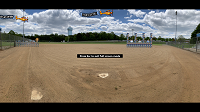
I have created two separate avi files with the "render alpha channel" option so they can be used in another video project simultaneously. In the main project I use "straight (unmatted)" in the alpha channel (under properties-> media) and I'm seeing one of the videos overlap the other transparent video. I've attached a screenshot where you can see video 1 on the left, video 2 on the right with a ball field in the background. Video 1 has parts of video 2 in it.... coincendtially, I have 2 additional transparent avi's (the planes in the sky) also in this main project, no problems.

Any ideas?
Comments

michael-harrison wrote on 5/30/2020, 3:02 PM

What should video 1 look like? I can't tell what belongs and what doesn't. If you mute all the other tracks, how does it look and as you mute the other tracks, does video change in appearance?

System 1:

Windows 10
i9-10850K 10 Core
128.0G RAM
Nvidia RTX 3060 Studio driver [most likely latest]
Resolution        3840 x 2160 x 60 hertz
Video Memory 12G GDDR5


System 2:

Lenovo Yoga 720
Core i7-7700 2.8Ghz quad core, 8 logical
16G ram
Intel HD 630 gpu 1G vram
Nvidia GTX 1050 gpu 2G vram


OP3 wrote on 5/30/2020, 3:05 PM

What should video 1 look like? I can't tell what belongs and what doesn't. If you mute all the other tracks, how does it look and as you mute the other tracks, does video change in appearance?

Here ya go...

OP3 wrote on 5/30/2020, 3:09 PM

What should video 1 look like? I can't tell what belongs and what doesn't. If you mute all the other tracks, how does it look and as you mute the other tracks, does video change in appearance?

And to answer the question: I muted the video to the right and it remains while playing in preview. I rendered a short segment and it was fine, nothing from the video to the right was in the left video. Coming back to the preview, it's gone after render. I'm assuming some setting is wrong somewhere.... but it's a weird one.

michael-harrison wrote on 5/30/2020, 3:16 PM

Hmmm. I'd just be guessing at this point. I'd recommend you update your OP with your VP version, hardware and mediainfo on the two clips

System 1:

Windows 10
i9-10850K 10 Core
128.0G RAM
Nvidia RTX 3060 Studio driver [most likely latest]
Resolution        3840 x 2160 x 60 hertz
Video Memory 12G GDDR5


System 2:

Lenovo Yoga 720
Core i7-7700 2.8Ghz quad core, 8 logical
16G ram
Intel HD 630 gpu 1G vram
Nvidia GTX 1050 gpu 2G vram


Howard-Vigorita wrote on 5/31/2020, 12:26 PM

@OP3 if muting the track when you don't want it to show through fixes it, inserting a Track Composite Level video envelope may work just as well if you automate it with keyframes to effectively mute it when you don't want it.

OP3 wrote on 6/5/2020, 6:21 PM

@OP3 if muting the track when you don't want it to show through fixes it, inserting a Track Composite Level video envelope may work just as well if you automate it with keyframes to effectively mute it when you don't want it.


That's definitely not the desired result but per recommendation above a test to see if I can isolate it. There just seems to be a problem with one transparent video I created bleeding over into one or more other transparent videos.... only when they are show simultaneously. The suspect video clip has inside it, sever layers of transparent videos used to create a wall of the same image (it's TP, in the above pic... don't ask lol). Maybe too much TP is the issue lol.

Musicvid wrote on 6/5/2020, 6:47 PM

Maybe play with your track compositing?